What This Process Does
Customer checks don't always land on the invoice amount to the penny. Rather than leave a small balance open on the customer's account or kick off a separate adjustment, Kinetic lets you write off the over- or under-payment directly as part of Cash Receipt Entry — no separate credit memo or debit memo transaction required.
- It applies the payment received to the invoice(s) selected, even when the check amount doesn't match exactly.
- It automatically calculates the over/under difference once you adjust the Amount to A/R.
- It posts the difference to a GL account of your choosing — many companies use a dedicated Over/Under Payment account so these small variances stay visible and easy to review.
Step 1: Start the Cash Receipt
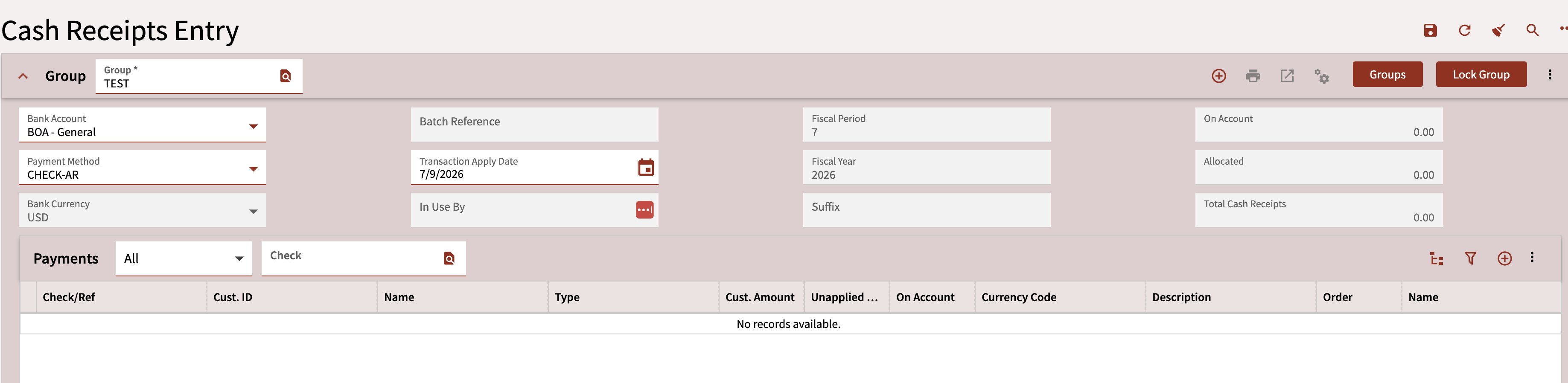
Navigate to Accounts Receivable / General Operations / Cash Receipts Entry. Create a Group, select the Bank and Payment method, and accept the Transaction Apply Date or change it as needed.
Step 2: Enter the Check and Customer Details
Enter the Payment Information
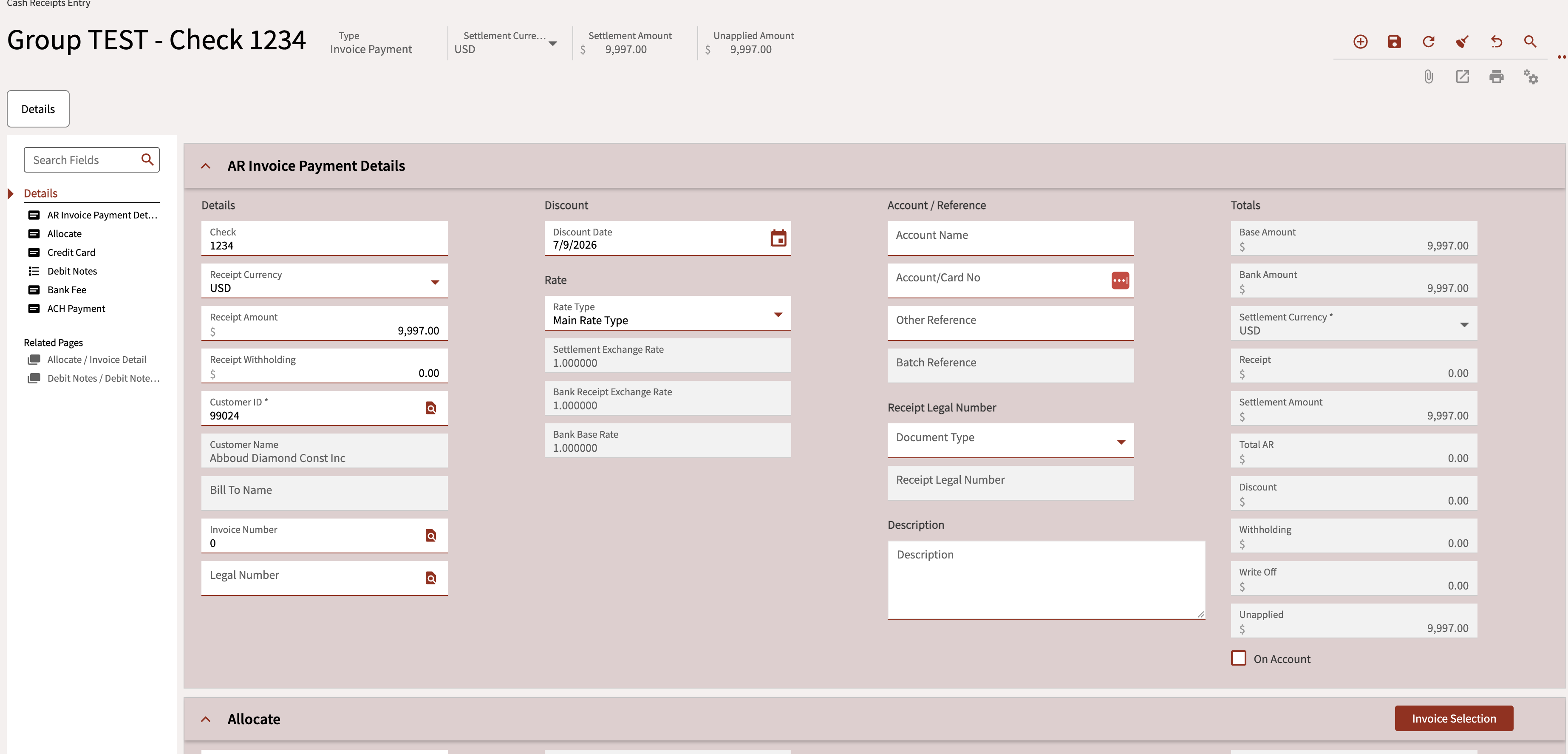
Once the Cash Receipt is open, enter the Check Number, the Check Amount, and the Customer ID, then click Invoice Selection.
Step 3: Select the Invoices to Apply
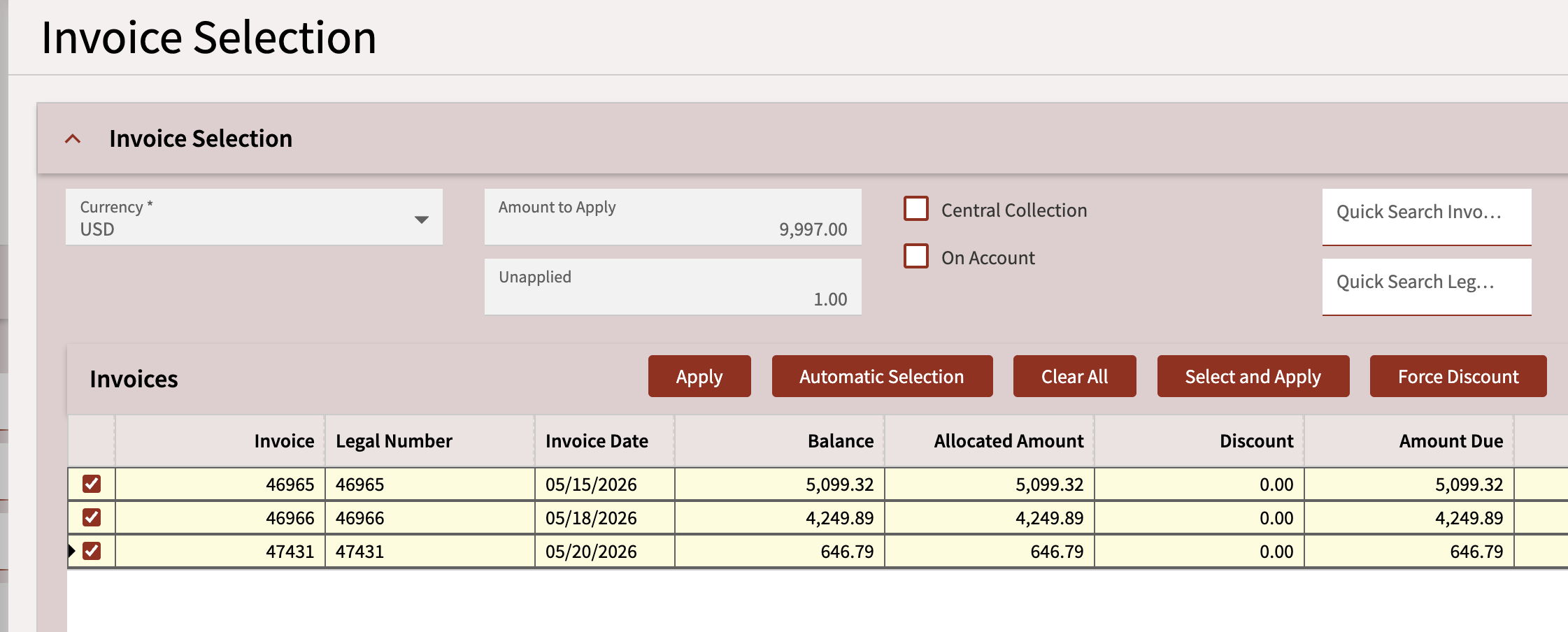
From the slider window, select the invoice(s) you want to apply the payment to, then click Apply.
Step 4: Adjust the Amount to A/R
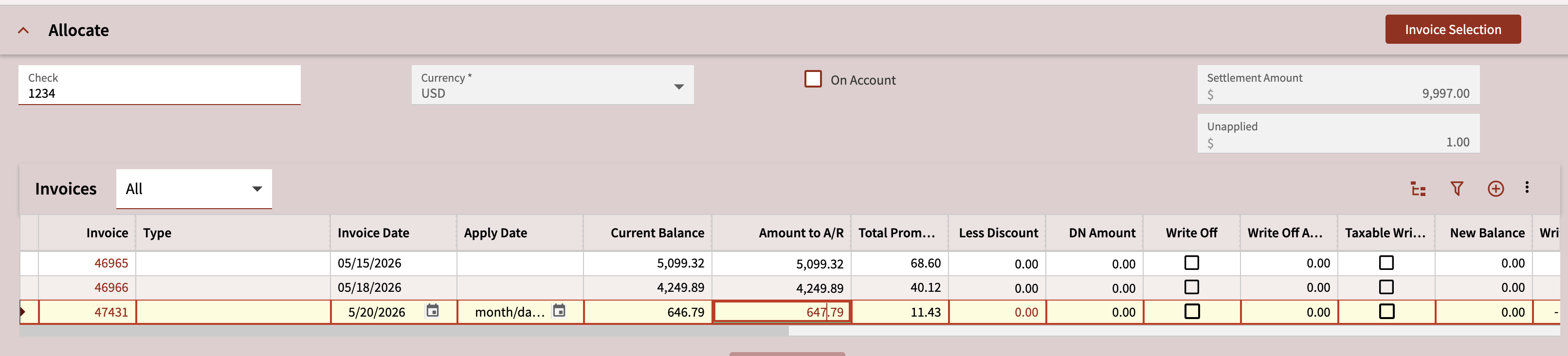
In the Allocate card, change the Amount to A/R to reflect the amount actually paid. This is what creates the Over/Under amount — the difference between what was invoiced and what was received.
Step 5: Confirm the Overpayment Message
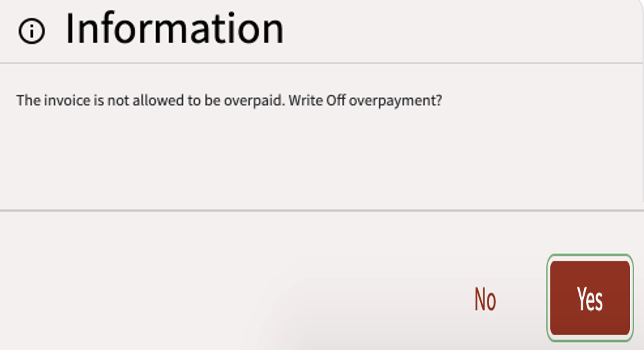
If the payment is over the invoice amount, an Information message will appear. Click Yes in the bottom right corner to continue.
Step 6: Let the System Flag the Write Off
The Allocate card will automatically fill in the over/under payment amount, and the system will check the Write Off column for you.

Step 7: Enter the Write Off GL Account
Enter the GL account for the Write Off. Some companies use a dedicated Over/Under Payment GL account so these variances are easy to track and review separately from normal cash activity.
Using a dedicated Over/Under Payment GL account (rather than posting straight to a discount or misc. income account) makes it much easier to spot patterns — like a customer who consistently shorts payments — during account reconciliation.

Step 8: Save, Print the Edit List, and Post
Click Save in the top right toolbar — the summary will show the amount to be written off.
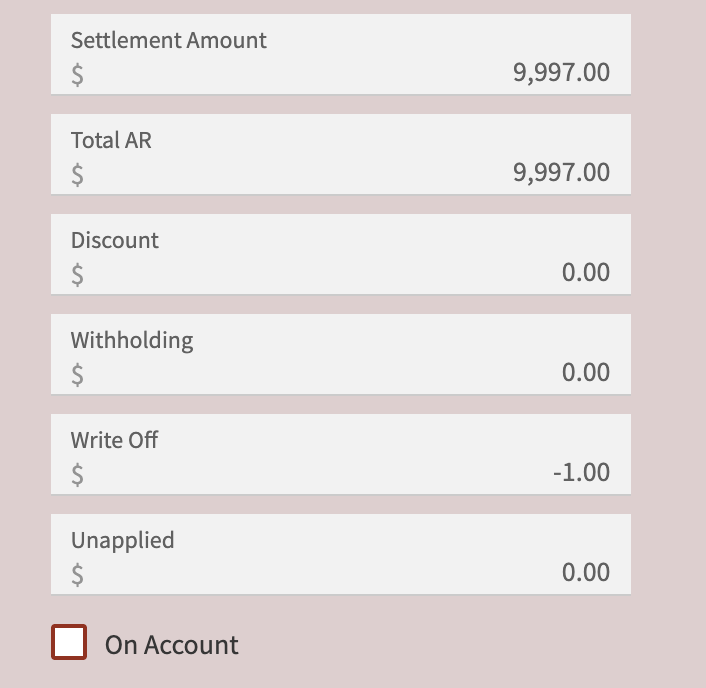
Print the Edit List to confirm everything looks correct, then Post the Cash Receipt.
Once posted, the write-off amount hits the GL account you entered — it does not stay open on the customer's AR balance. If the shortage is large or recurring, review it with your controller before writing it off; it may point to a pricing, discount, or deduction issue rather than a simple rounding difference.
Still Stuck? We Can Help.
If this guide didn't fully resolve your issue — or your Cash Receipts aren't reconciling — our Epicor consultants are available same-day. No long-term contract required.