What Is an Updatable BAQ?
A standard BAQ (Business Activity Query) is read-only — it pulls data for reporting and lookup purposes. An Updatable BAQ goes further: it lets users edit records directly from the query results grid, bypassing the need to navigate to the source screen. This is especially useful for bulk corrections or for fields that are hard to reach after a transaction is posted.
This example demonstrates updating an invoice line description after the invoice has already been posted — something you cannot do through the normal AR Invoice screen.
Updatable BAQs write directly to the database via Epicor's service layer. Only grant access to users who understand the data they're editing. Always test in a non-production environment first.
Step-by-Step: Creating an Updatable BAQ
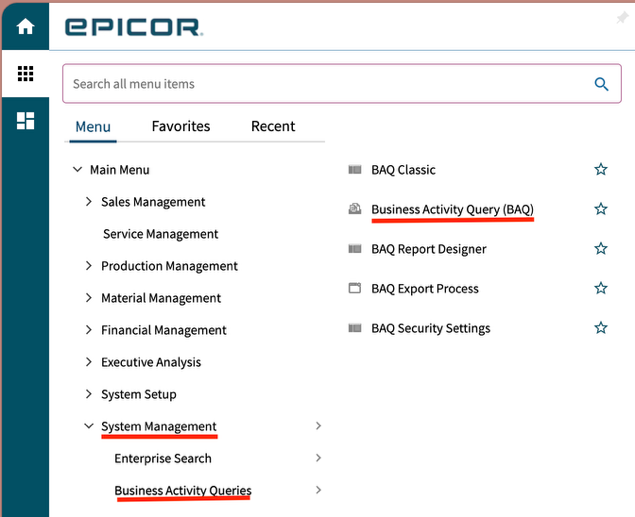
Open Business Activity Query
Navigate to System Management > Business Activity Queries > Business Activity Query (BAQ).
Create or Select a BAQ
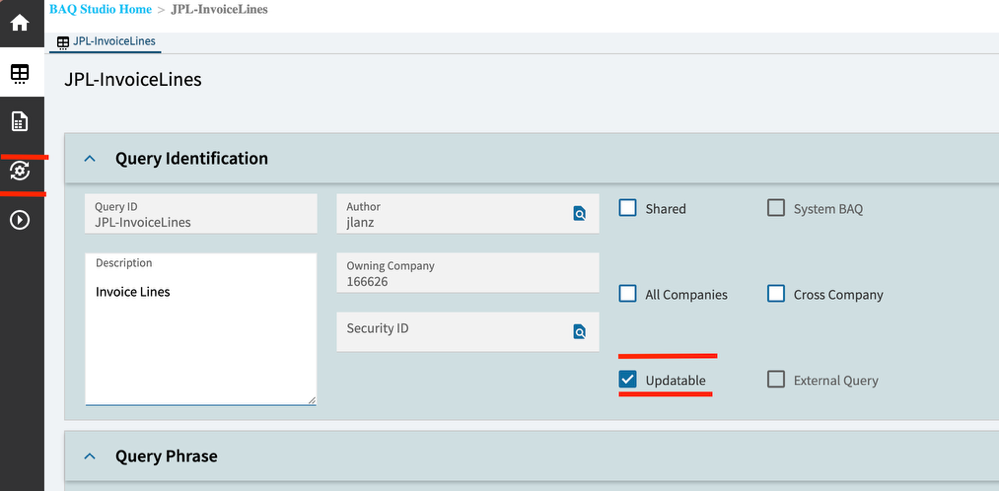
Open an existing BAQ or create a new one. In the Query Properties section, check the Updatable checkbox.
Once selected, a new icon will appear in the left navigation bar — this is the updatable grid configuration screen.
Configure the Updatable Fields
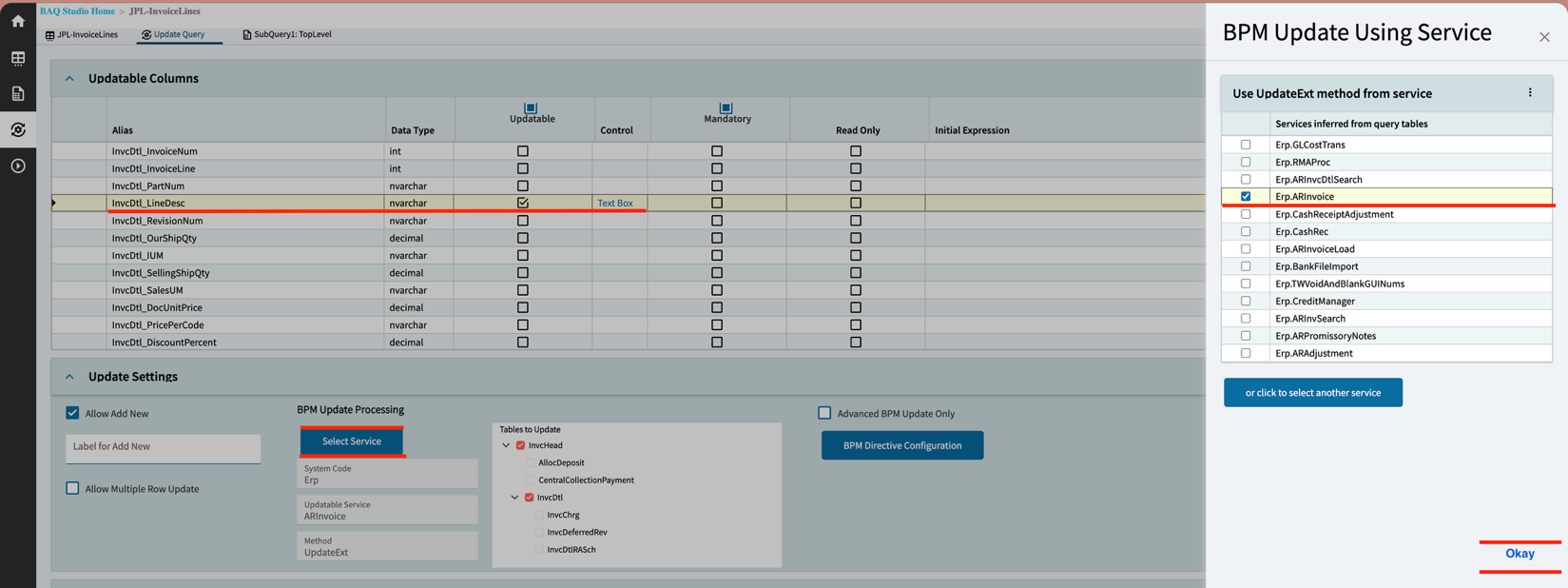
Select the fields you want to display. Only display fields can be made updatable. Click the new updatable grid icon in the left navigation to open the configuration screen.
For this example, select the InvDtl_LineDesc field and check the Updatable column next to it.
Then click Select Service — a slider window will appear. Select Erp_ARInvoice as the service.
Run and Edit the Data
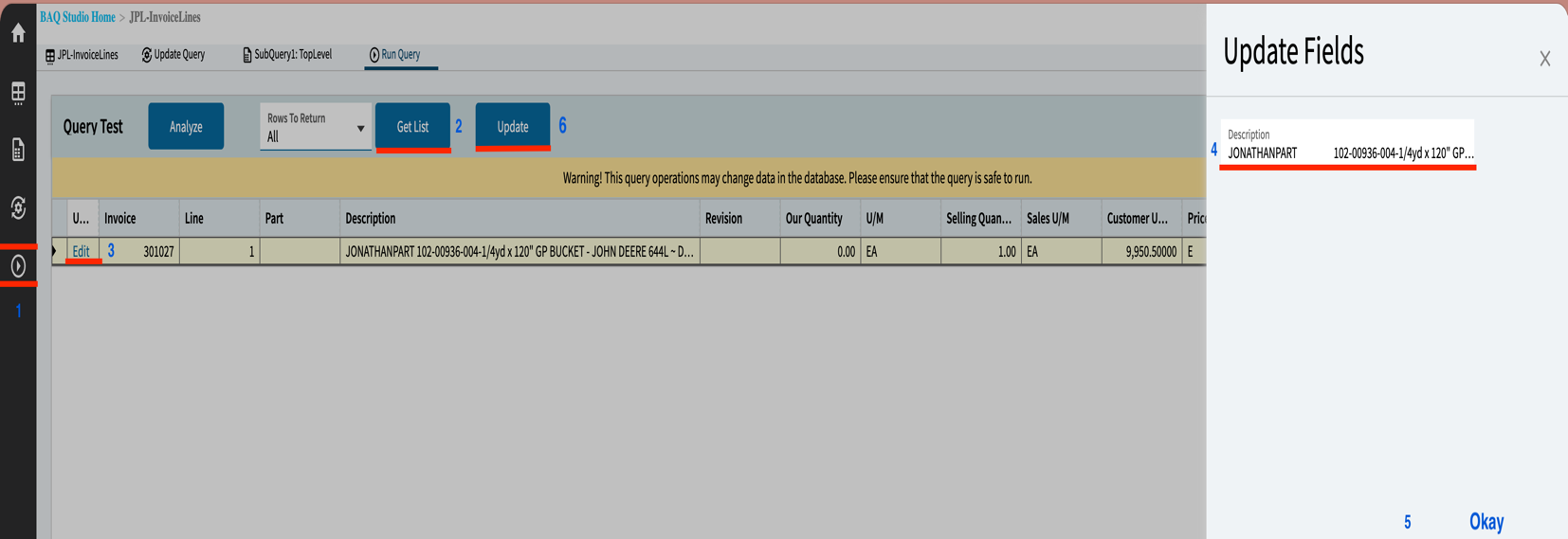
Click the Play icon in the left navigation menu to execute the query. Then follow these steps to make an edit:
- Click the Play icon to run the query
- Click Get List to load results
- Click Edit on the first column of the row you want to change
- In the slider window, modify the text for the Invoice Line description
- Click Okay
- Click Update to save the change to the database
You can reuse the same Updatable BAQ for ongoing corrections — just run it, find the record, and edit. Save the BAQ with a clear name (e.g., UBAQ-ARInvLineDesc) so your team knows it's available for this purpose.
Need Help with BAQs or Data Corrections?
We build custom BAQs and data fixes for Epicor environments every day. Get expert help — no long-term contract required.
Free Consultation